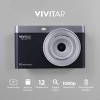
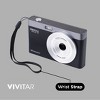

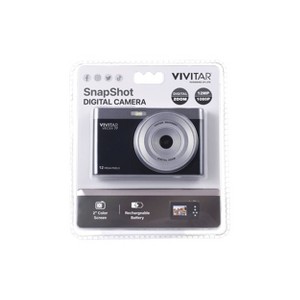
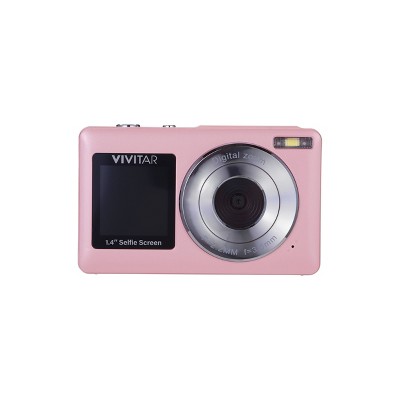
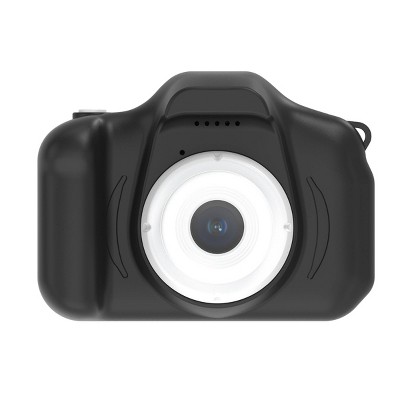
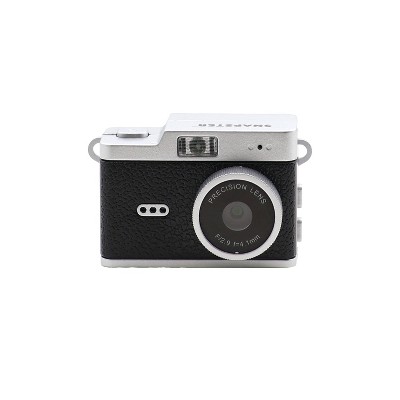
Vivitar SnapShot 2" Color Display Digital Camera - Black
$20.00
Out of Stock

Free & easy returns
Return this item in store within 30 days for a full refund.
Find alternative
Eligible for registries and wish lists
About this item
Additional product information and recommendations
Frequently bought together








3.1 out of 5 stars with 129 reviews
quality: 2.95 out of 5
value: 3.25 out of 5
48% would recommend
68 recommendations
1 out of 5 stars
Thumbs down graphic, would not recommend
26 February, 2026Verified purchase
(no review title)
Low quality. Everything looks very dark cannot adjust screen. Lasted for two months and doesn’t work anymore
1 reply from Vivitar Customer Service team - 7 months ago
"Hi, Thanks for reaching out. We're sorry to know that the unit is not working as expected. Please reach out to us at 1800-5929-541 or support@vivitar.com quoting ticket number 348782. We will try and help you fix the issue. Thank you."
1 out of 5 stars
26 January, 2026Verified purchase
Poor image resolution
Xmas gift for my son. Every picture is fuzzy.
1 reply from Vivitar Customer Service team - 9 months ago
"Hi, Thanks for reaching out. We're sorry to know that the unit is not working as expected. Please reach out to us at 1800-5929-541 or support@vivitar.com quoting ticket number 348706. We will try and help you fix the issue. Thank you."
1 out of 5 stars
Thumbs down graphic, would not recommend
19 January, 2026Verified purchase
Poor quality pictires
This camera has very poor quality when it comes to taking pictures. Do not waste your money on this item. I tried to return it and was told it wasn’t eligible for a return.
1 reply from Vivitar Customer Service team - 9 months ago
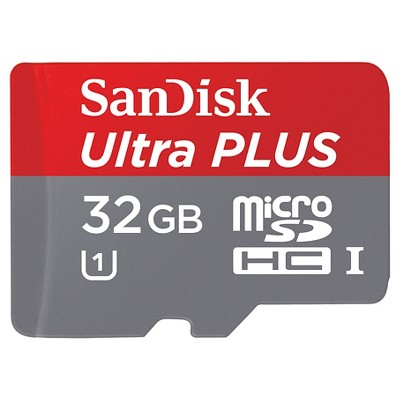
Hi, Thanks for reaching out. We’re sorry for the inconvenience, but exchanges are subject to the retailer’s return policy, and please note the camera requires a microSD card to operate.Please reach out to us at 1800-5929-541 or support@vivitar.com quoting ticket number 348692. We will try and help you fix the issue. Thank you.
1 out of 5 stars
Thumbs down graphic, would not recommend
16 January, 2026Verified purchase
Crappy piece of garbage.
Terrible pictures. Feels like a toy. I understand it was $20 but come one at least make it feel like there’s something there. Not just a shell. Pictures are really dark. Crappy. Do not buy!
5 out of 5 stars
Thumbs up graphic, would recommend
16 January, 2026Verified purchase
great value
great camera for everyday use. it was easy to set up and operate and did not have a lot of complex settings. it was literally indestructible, I dropped it twice.
1 reply from Vivitar Customer Service team - 9 months ago
Hi, It's wonderful to hear that you are enjoying our product. We're thrilled to have such positive feedback.! We sincerely hope that your enjoyment persists. Please reach out to us at 1800-5929-541 or support@vivitar.com, ticket number 62724. If you have more suggestions.
5 out of 5 stars
Thumbs up graphic, would recommend
15 January, 2026Verified purchase
Camera
This camera is so easy to use. Pictures are clear and bright. Stylish and a fun color.
1 reply from Vivitar Customer Service team - 9 months ago
Hi, It's wonderful to hear that you are enjoying our product. We're thrilled to have such positive feedback.! We sincerely hope that your enjoyment persists. Please reach out to us at 1800-5929-541 or support@vivitar.com, ticket number 62722. If you have more suggestions.
5 out of 5 stars
15 January, 2026Verified purchase
(no review title)
This is a great beginner camera for a child. It’s easy to use and the pictures are clear. My daughter also loves the color!
1 reply from Vivitar Customer Service team - 9 months ago
Hi, It's wonderful to hear that you are enjoying our product. We're thrilled to have such positive feedback.! We sincerely hope that your enjoyment persists. Please reach out to us at 1800-5929-541 or support@vivitar.com, ticket number 62719. If you have more suggestions.
4 out of 5 stars
Thumbs up graphic, would recommend
11 January, 2026
(no review title)
Pretty good for $20. (Got it on clearance for $14) But the battery goes down fast.
1 reply from Vivitar Customer Service team - 8 months ago
"Hi, Thanks for reaching out. We're sorry to know that the unit is not working as expected. Please reach out to us at 1800-5929-541 or support@vivitar.com quoting ticket number 348758. We will try and help you fix the issue. Thank you."
1 out of 5 stars
Thumbs down graphic, would not recommend
7 January, 2026Verified purchase
(no review title)
My camera lens came broke.
1 out of 5 stars
7 January, 2026
No bueno
Basically a toy
5 out of 5 stars
Thumbs up graphic, would recommend
7 January, 2026Verified purchase
Cute, compact, and easy for tween to use!
I really liked this digital camera. It was a Christmas gift for my tween niece, and she easily used it over the holidays to capture special moments. It’s small, compact, and simple to use, giving her a wonderful way to preserve memories from her own perspective.
5 out of 5 stars
Thumbs up graphic, would recommend
6 January, 2026Verified purchase
Gray for young kids to learn cameras
Ready to use gray for my 8 year old as a first camera. The charge has lasted for 2 weeks since she got for Christmas. Best price
1 reply from Vivitar Customer Service team - 9 months ago
Hi, It's wonderful to hear that you are enjoying our product. We're thrilled to have such positive feedback.! We sincerely hope that your enjoyment persists. Please reach out to us at 1800-5929-541 or support@vivitar.com, ticket number 62705. If you have more suggestions.
4 out of 5 stars
Thumbs up graphic, would recommend
4 January, 2026Verified purchase
(no review title)
good product cant get wrist band but overall good
1 out of 5 stars
3 January, 2026Verified purchase
(no review title)
Pictures are terrible!
1 out of 5 stars
Thumbs down graphic, would not recommend
3 January, 2026Verified purchase
(no review title)
image quality is terrible, my expectations were low and was still disappointed.
5 out of 5 stars
Thumbs up graphic, would recommend
3 January, 2026Verified purchase
Nice compact camera
I love this compact camera. It works conveniently for on the go pictures or recordings.
5 out of 5 stars
Thumbs down graphic, would not recommend
2 January, 2026Verified purchase
okay
okay ..needs to be connected to a cell phone
1 out of 5 stars
Thumbs down graphic, would not recommend
1 January, 2026Verified purchase
(no review title)
The pictures are very pixelated to the point where you can’t tell the faces of the people you took a picture of.
1 out of 5 stars
Thumbs down graphic, would not recommend
1 January, 2026Verified purchase
(no review title)
This camera wasn’t even worth $20 I got 1 for my daughter and niece and when my daughter open hers I ran to target it returned it I was to embarrassed to give that thing out as a Christmas gift
1 reply from Vivitar Customer Service team - 9 months ago
"Hi, Thanks for reaching out. We're sorry to know that the unit is not working as expected. Please reach out to us at 1800-5929-541 or support@vivitar.com quoting ticket number 348647. We will try and help you fix the issue. Thank you."
1 out of 5 stars
31 December, 2025
(no review title)
Camera quality is so bad